 Check Accessibility, HTML, CSS, Broken Links & Spelling
Documentation > Browser extensions
Start the Total Validator application and set the required options in the usual way (ignoring the Start page). Browse to the page you wish to test and click the Total Validator icon on your browser toolbar, or use a keyboard shortcut, to start testing the current page.

Alternatively select the appropriate option from the context menu (right click the page):
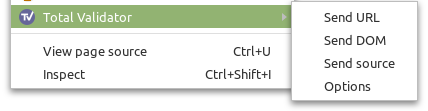
Depending on which option you've chosen the extension will either send the URL of the current page, the DOM, or the source of the page to the Total Validator application to test it. With the Pro and CI versions you can test a whole website this way with just one click.
During operation the application will automatically minimise or shrink to the System Tray.

If you wish to start Total Validator already minimised, such as when starting your computer, then use the Start Minimised menu option.
Extension options
To access and set the extension options use the context menu, or right mouse click the toolbar icon and choose Options.
Toolbar action
What to send to the application when you click the toolbar icon
Send URL: This sends the url of the current page to the application for testing. This is equivalent to entering the url in the Start page in the application.
Send DOM: Normally Total Validator tests the web page before any JavaScript has been run. If you use JavaScript to modify the page, then select this to send the page after any initial JavaScript has run. Selecting this option also allows additional accessibility testing to be performed. The source in this case is not the original web page but is generated from your browser's DOM, so you may see some issues that do not exist in the original web page, and line numbers will often differ. Note: With this option broken links can only be tested for if you have the Pro or CI versions.
Send source: If Send URL does not work for you
(for example, some unsupported authentication system is protecting pages), then use this option to send the
source of the current web page for testing instead. Note: With this option
broken links can only be tested for if you have the Pro or CI versions.
Advanced
Listen port: This is set to 9889 by default. This is the TCP port that the Total Validator application listens to for requests from the browser extension to test pages. Whatever you enter here must match the value you've entered in the application. Any number in the range 1-65535 is valid, but you must choose one that does not conflict with any other service you having running.
Change only when advised
Do not make any changes to these settings unless TV Support advises, as they are likely to compromise your testing.
Testing multiple source pages with Total Validator Pro or CI
With the Pro and CI versions, Send DOM and Send source will automatically step through the website just like Send URL, and test as many pages as you wish.
You will see each page being displayed in your browser in turn and on completion the original page will be displayed, and a new tab opened with the results.
With the Chrome and Edge browsers you must ensure that the browser set in the Results options is the same as the one used to start the test. Otherwise it may switch to the other browser mid-way through your test and stop. Use the Cancel button on the application's progress window to cancel the test. Then start again with the same browser as set in the Results options.
During testing, you should try to avoid using your browser and never attempt to start a new test while a current one is still executing. Always use the Cancel button on the application's progress window to cancel first, otherwise you may get unexpected and confusing results.
When testing DOM-generated source, if any initial JavaScript has not fully completed before the page is tested, please contact us for the best solution.
Keyboard shortcuts
By default the keyboard shortcut equivalent to clicking the toolbar icon is Ctrl+Shift+V (Command+Shift+V for macOS). You can use a different keyboard shortcut, remove it altogether, and also define shortcuts for the context menu options as follows:
Firefox: Go to about:addons, click on the cog icon and select Manage Extension Shortcuts, and edit or remove the shortcuts displayed for Total Validator.
Chrome: Go to chrome://extensions/shortcuts, and edit or remove the shortcuts displayed.
Edge: Go to edge://extensions/shortcuts, and edit or remove the shortcuts displayed.
Issues
If you have a problem that isn't covered below then complete the Contact Form to report it. Don't forget to leave a valid email address where you can be contacted.
Incompatible extension and application versions
If you see this message then the browser extension and Total Validator application are running incompatible versions. To resolve this you will need to upgrade the application to the latest release, or (if possible) downgrade your browser extension to a previous release. The Application and Extension change logs may have more information about this issue.
Could not contact the Total Validator application
If this appears you may have simply forgotten to start the Total Validator application. This must be running when using an extension.
Alternatively, the firewall on your computer may have been configured to block Total Validator from accepting connections from extensions: When starting Total Validator, you may have seen a message about allowing incoming connections to either Total Validator or Java and decided to deny these. In this case you will have to amend your firewall to allow them again.
Total Validator only listens for local connections from your browser, and only on a specific TCP port. This Listen port may already be being used by another service preventing the application from listening. Usually you will see a message when starting the application if this is the case. If necessary, you can change the Listen port in the Application Options and update the options page in the extension to match, as described above.
Extension not installed or not configured correctly
To use this feature, you must have a Total Validator extension installed and enabled in your browser, and the correct options configured:
Firefox: Go to about:addons, find the Total Validator extension and check that it is enabled.
Chrome: Go to chrome://extensions, find the Total Validator extension and check that it is enabled. Click Details and under Site access ensure that On all sites is selected. Also check that the Allow access to file URLs option is enabled as this may also be required.
Edge: Go to edge://extensions, find the Total Validator extension and check that it is enabled. Click Details and under Site access ensure that On all sites is selected. Also check that the Allow access to file URLs option is enabled as this may also be required.
Browser needs to be manually started
When starting a DOM validation from the Total Validator application, we have found that on some systems and with some browsers, the browser must already be running first. So please try again with the browser already open.
Validation failed
If this message appears then there may be a conflict between Total Validator and some other service. You can change the Listen port in the Application Options and update the options page in the extension to match, as described above.
Could not retrieve source of page
If this appears then the page you are trying to test has unexpectedly disappeared from the web server, or is no longer visible due to authentication issues. Try reloading the page and repeating the test.
Could not contact the content script
If this appears after you have just installed or enabled the extension, you may need to reload pages in your browser before you can test them.
You should also check the extension is enabled and configured correctly (see above), and restart your browser to ensure all settings have been applied.
Nothing happens
Firefox: Open the browser console (Ctrl+Shift+J) and look for any of the messages above, or other messages mentioning Total Validator which may explain the issue.
Chrome: Go to chrome://extensions, check the Developer Mode checkbox, find the Total Validator extension and click the Inspect views: service worker link, then look at the Console tab for any error messages.
Edge: Go to edge://extensions, check the Developer Mode checkbox, find the Total Validator extension and click the Inspect views: service worker link, then look at the Console tab for any error messages.
Multi-page testing cancels before finishing
When testing multiple pages of source or DOM-generated source, it may self-cancel before completing. This can be due to security restrictions of the website. The last page attempted should still be displayed in your browser: Press F12 and look at the Console tab for any error messages which may explain why it failed.
Multi-page testing switches to another browser and stops
With the Chrome and Edge browsers you must ensure that the browser set in the Results options is the same as the one used to start the test. Otherwise it may switch to the other browser mid-way through your test and stop. Use the Cancel button on the application's progress window to cancel the test. Then start again with the same browser as set in the Results options.
Multi-page testing hangs or opens lots of tabs
The Chrome and Edge browsers have been programmed to stop extensions after 30 seconds of inactivity. If this occurs the test may appear to hang.
This inactivity limit is reached when the Total Validator application takes more than 30 seconds to test a page (usual on pages with lots of links). But this is okay because the application will open a new tab to continue the test and close the original tab. If the original tab doesn't close this may cause lots of tabs to remain open - if this happens use the Contact Form to report it.
The inactivity limit may also be reached if you set the Page pause option to more than 25000 milliseconds. In this case the test will just stop. So we recommend using a value no higher than 25000 milliseconds, or avoiding this option altogether.
Browser continues multi-page testing after cancelling it, or after an error
Following a cancellation or an error the browser may keep on testing, possibly opening multiple tabs. Immediately close your browser and/or Total Validator to stop this.
The keyboard shortcut doesn't work
If the keyboard shortcut doesn't work, then it may clash with another extension, or a shortcut defined by the browser itself. In this case try defining a different key combination as described above.